

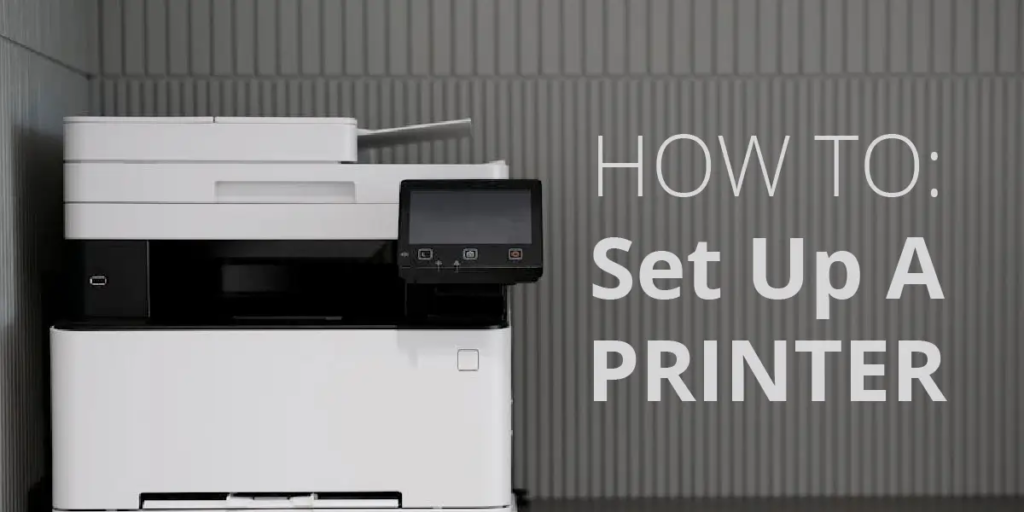
How to Set Up a Printer in Zimbabwe (Step-by-Step Guide)
Step-by-step guide on how to set up printers in Zimbabwe. Learn how to unbox, install ink or toner, connect via USB or Wi-Fi, download printer drivers, and troubleshoot common issues. Perfect for buyers of HP, Canon, Epson, and Brother printers from zonline.africa in Harare, Bulawayo, Mutare, and across Zimbabwe.
📦 Step 1: Unboxing Your Printer
- Carefully remove the printer from its packaging.
- Check the box for all accessories:
- Power cable
- USB cable (if included)
- Ink cartridges or toner
- Setup CD/manual (sometimes replaced by online guides)
- Place the printer on a flat, stable surface near a power source.
Tip for Zimbabwe buyers: Keep the packaging in case you need to transport the printer safely, especially if you’re moving between Harare, Bulawayo, other cities or just moving your office within the city.
🔌 Step 2: Connecting Power
- Plug the power cable into the printer and then into a wall socket.
- Switch on the printer using the power button.
- Wait for the printer to initialize (you may hear some internal movements).
🖋️ Step 3: Installing Ink or Toner
- Open the cartridge access door.
- Remove protective seals from ink cartridges or toner.
- Insert cartridges into their designated slots (color-coded for inkjet printers).
- Close the access door and allow the printer to align cartridges.
Local Note: For affordability, many Zimbabwean buyers prefer refillable ink tank printers. zonline.africa stocks models like Epson EcoTank and Canon MegaTank which reduce long-term printing costs.
📶 Step 4: Choosing Connection Type
Printers available on zonline.africa usually support three connection methods:
Option A: USB Connection (Simple & Reliable)
- Connect the USB cable from the printer to your laptop/desktop.
- The computer should automatically detect the printer.
Option B: Wireless Wi-Fi Connection
- On the printer’s control panel, select Wi-Fi Setup.
- Choose your home/office Wi-Fi network.
- Enter the password.
- Confirm connection (printer screen usually shows a Wi-Fi icon).
Option C: Mobile Printing (Smartphones/Tablets)
- Download the printer’s mobile app (e.g., HP Smart, Canon PRINT, Epson iPrint).
- Connect your phone to the same Wi-Fi network as the printer.
- Add the printer in the app and start printing directly from your phone.
💻 Step 5: Installing Printer Drivers
Drivers are essential for your computer to communicate with the printer.
- Windows Users (Zimbabwe):
- Go to the manufacturer’s website (HP, Canon, Epson, Brother).
- Search for your printer model.
- Download and install the latest drivers.
- Mac Users:
- Most drivers install automatically.
- If not, download from the manufacturer’s site.
- Without Internet?
- Use the setup CD (if provided).
- Or connect via USB and let Windows auto-install basic drivers.
Note: Many Zimbabwean buyers search for “printer drivers download Zimbabwe”. If you do, always use official manufacturer sites to avoid malware.
📄 Step 6: Test Printing
- Load plain A4 paper into the tray.
- On your computer, open a document and select Print.
- Choose your printer from the list.
- Print a test page to confirm everything works.
🛠️ Step 7: Troubleshooting Common Issues
- Printer not detected: Check cables or Wi-Fi connection.
- Paper jams: Remove jammed paper carefully, reload correctly.
- Poor print quality: Run the printer’s cleaning cycle via settings.
- Driver errors: Reinstall drivers from the official website.
Local Printer Maintanance Tip: Power fluctuations are common in Zimbabwe. Use a surge protector to safeguard your printer.
🌍 Step 8: Setting Up for Zimbabwean Workflows
- Business Use: Configure default settings for invoices, receipts, or school documents.
- Home Use: Enable mobile printing for quick access from WhatsApp or email attachments.
- Community Use: If you run a print shop in Harare or Bulawayo, set up multiple computers to connect to the same printer via Wi-Fi.
📌 Final Checklist
- ✅ Printer powered on
- ✅ Ink/toner installed
- ✅ Drivers installed
- ✅ Connected via USB/Wi-Fi
- ✅ Test page printed successfully
That’s it!!!
Setting up a printer in Zimbabwe is straightforward when you follow these steps. Whether you buy an HP DeskJet, Canon PIXMA, Epson EcoTank, or Brother LaserJet from zonline.africa, this guide ensures you can unbox, install, and start printing without needing a technician.
Takeaway: If you’re looking for affordable printers in Zimbabwe, printer setup tutorials for Harare, Bulawayo, and Mutare, zonline.africa is your trusted source.
Featured Printers
-
Pantum BM5100ADW A4 Mono Multifunction Laser Printer
$320.00 -
HP PRO MFP 4103FDW PRINTER
$570.00 -
CANON I-SENSYS MF275DW
$350.00 -
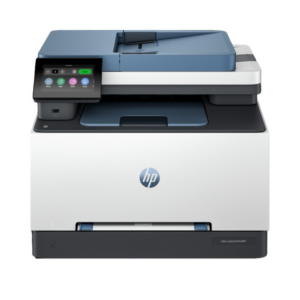
HP COLOUR LASERJET MFP PRO 3303SDW PRINTER
$580.00 -
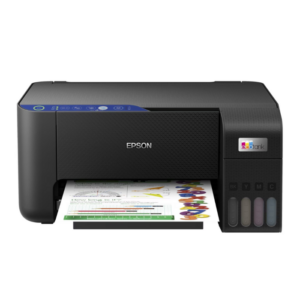
Epson EcoTank L3250 A4 Colour Multifunction InkTank Printer
$210.00 -

HP DeskJet 2320 All-in-One Colour Printer
$47.00 -
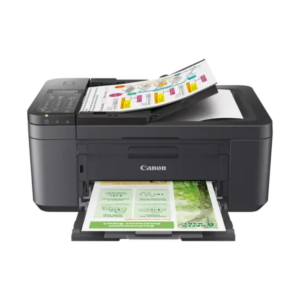
Canon PIXMA TR4645
$95.00 -

PANTUM M6552NW MONO 3IN1 LASER PRINTER
$180.00 -

Pantum P2305W Mono Laser Printer
$75.00 -
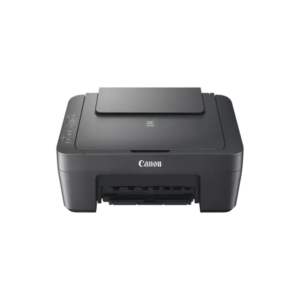
Canon PIXMA MG2541S
$55.00 -
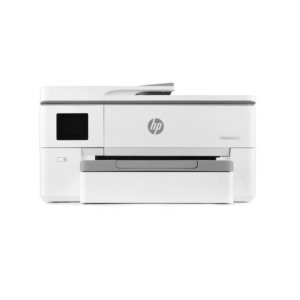
HP OfficeJet Pro 9720 Wide Format All-in-One Printer
$380.00 -
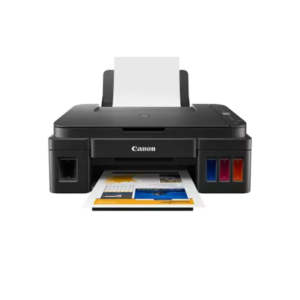
Canon PIXMA G2410
$175.00 -
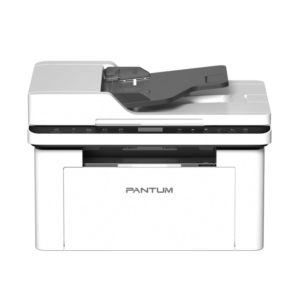
PANTUM BM2305AW MONO 3IN1 LASER PRINTER WITH ADF
$120.00 -
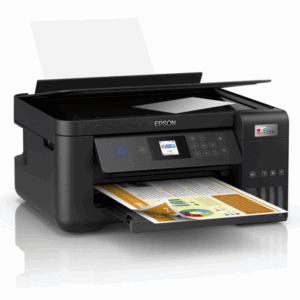
Epson EcoTank L4260 A4 Colour Multifunction Inkjet Printer
$370.00 -
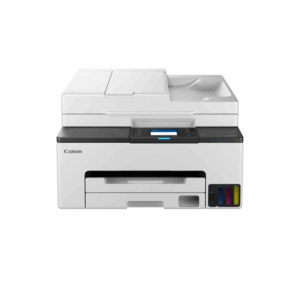
Canon MAXIFY GX2040 A4 Colour Multifunction Inkjet Printer
$495.00$520.00 -
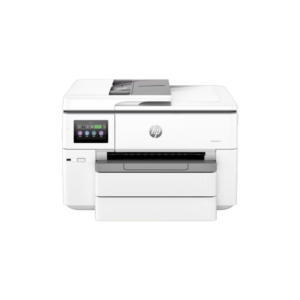
HP OfficeJet Pro 9730 Wide Format All-in-One Printer
$410.00


No Comments